Requirements
- Windows or Mac (Apple silicon M1–M4, or Intel). The After Effects / Premiere Pro panels are a beta and Windows only.
- DaVinci Resolve — the free version, or Studio 19.1 or newer; ROKLIM is made for Resolve 21.
- A ROKLIM license: lifetime or a monthly subscription — or a 7-day free trial without a card. See pricing.
1. Let ROKLIM talk to Resolve
Free DaVinci Resolve: in Resolve choose Workspace → Scripts → ROKLIM — once each time you open Resolve. ROKLIM adds this menu item by itself when it starts.
DaVinci Resolve Studio: open Preferences → System → General and set External scripting using to Local. Restart Resolve. (Workspace → Scripts → ROKLIM works in Studio too.)
This is what allows ROKLIM to drive Resolve through its scripting API. ROKLIM installs no Fusion templates and no plugins into Resolve.
2. Install and activate
Get a license key: start the 7-day free trial — enter your email, the key comes by email, no card — or buy and get the key at checkout. The 7 days start when you activate the key; one trial per computer.
Windows
- Download the installer — the latest version is always at roklim.com/download — and run
ROKLIM-Setup-….exe. - Windows may show "Windows protected your PC". That is SmartScreen: the installer is not yet signed by a known publisher. Click More info → Run anyway.
- On first start ROKLIM asks for your license key. Paste it and press Activate.
Mac
- Download ROKLIM for your Mac: Apple silicon (M1–M4) or Intel. Not sure which? Apple menu → About This Mac: "Chip Apple M…" is Apple silicon, "Processor Intel" is Intel.
- Open the downloaded
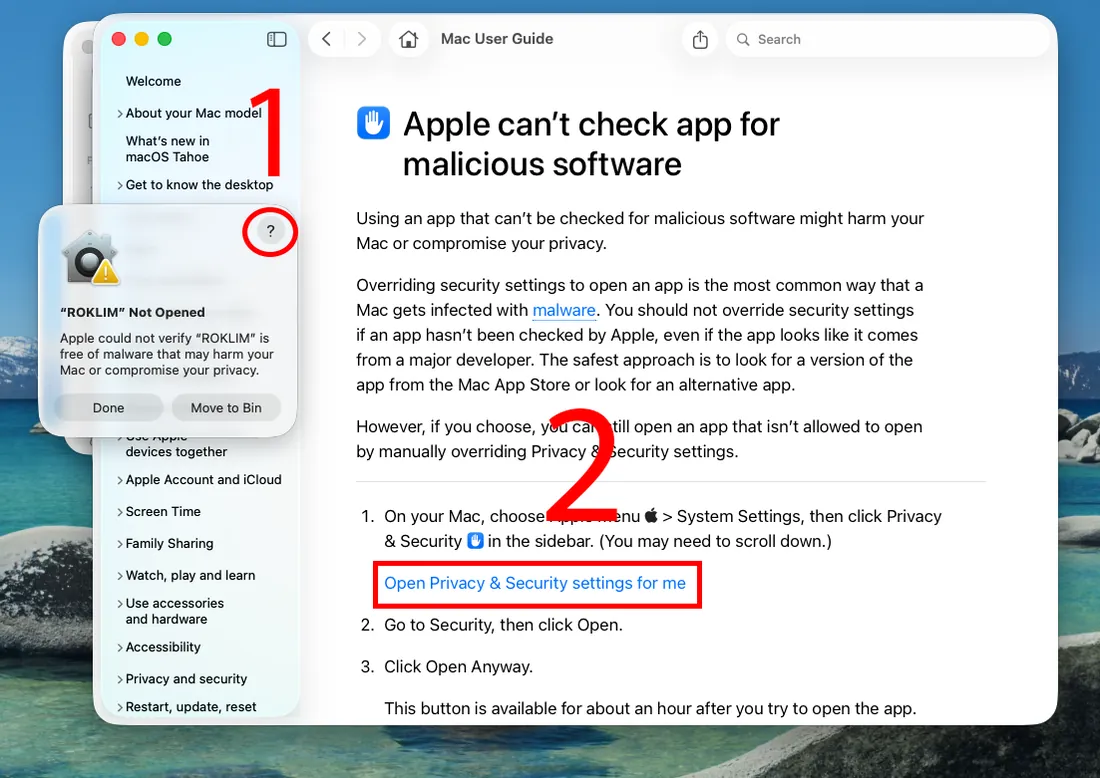
ROKLIM-….dmgand drag ROKLIM into Applications. - Open ROKLIM from Applications. The first time, macOS says "ROKLIM" Not Opened — allow it once, as shown below.
- ROKLIM asks for your license key. Paste it and press Activate.
Why macOS says "ROKLIM" Not Opened
macOS only opens apps from the internet without a question when Apple has checked them (notarization, part of Apple's paid developer program). ROKLIM is not notarized yet, so macOS cannot check it and stops the first start. Nothing is wrong with the file — it is the same app from the official ROKLIM release. You allow it once; after that ROKLIM opens like any other app.
1–2. In the "ROKLIM" Not Opened window press ?. The Mac User Guide opens — press Open Privacy & Security settings for me.
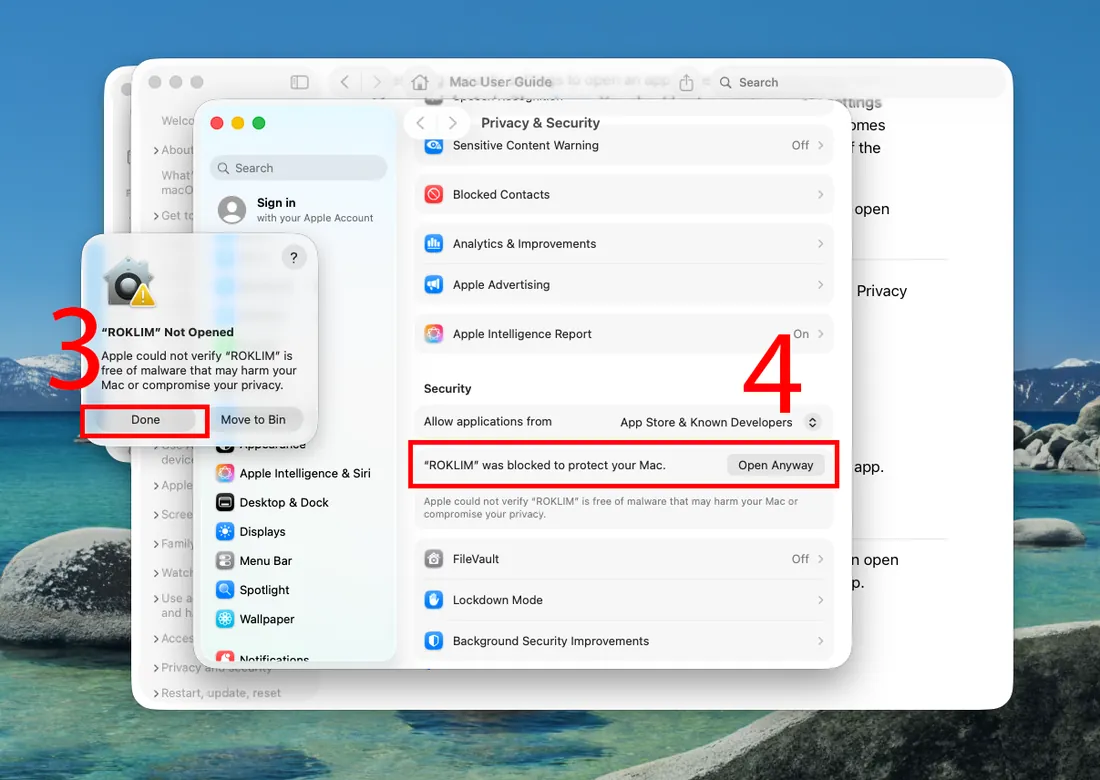
3–4. Press Done in the "ROKLIM" Not Opened window. In Privacy & Security, next to "ROKLIM" was blocked to protect your Mac, press Open Anyway and enter your Mac password. The button is there for about an hour after you tried to open ROKLIM — if it is gone, open ROKLIM once more.
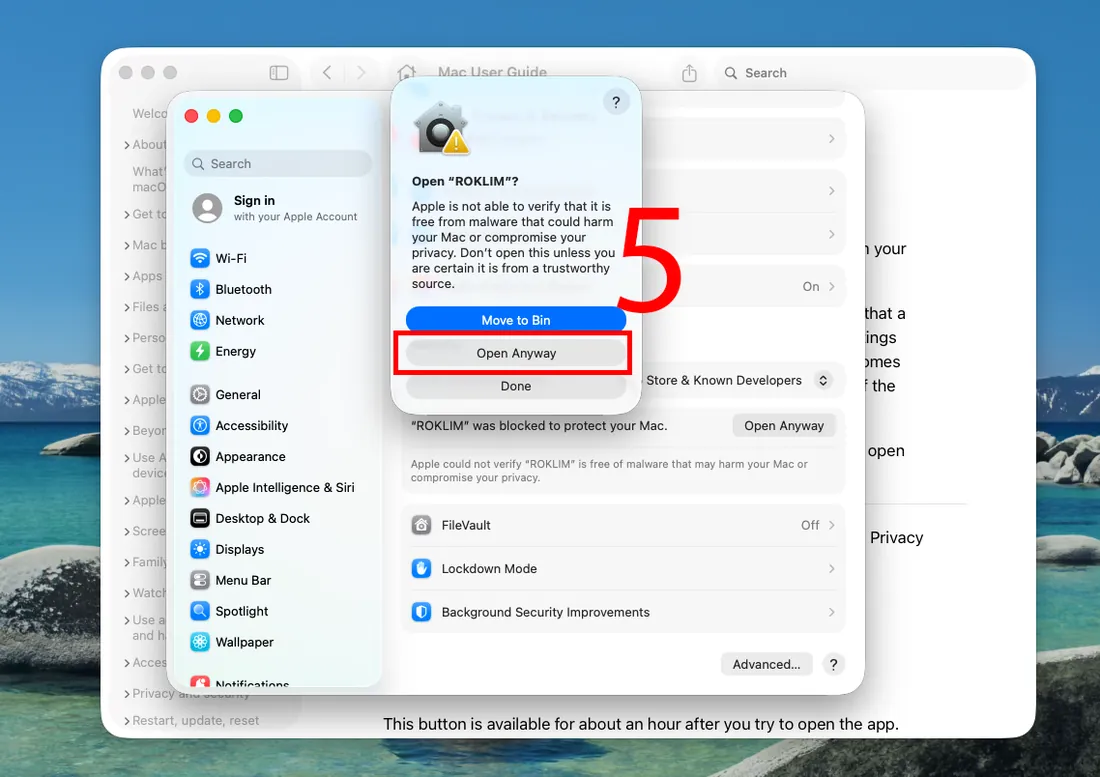
5. macOS asks one more time: Open "ROKLIM"? — press Open Anyway. If nothing seems to happen, look for this window behind System Settings.
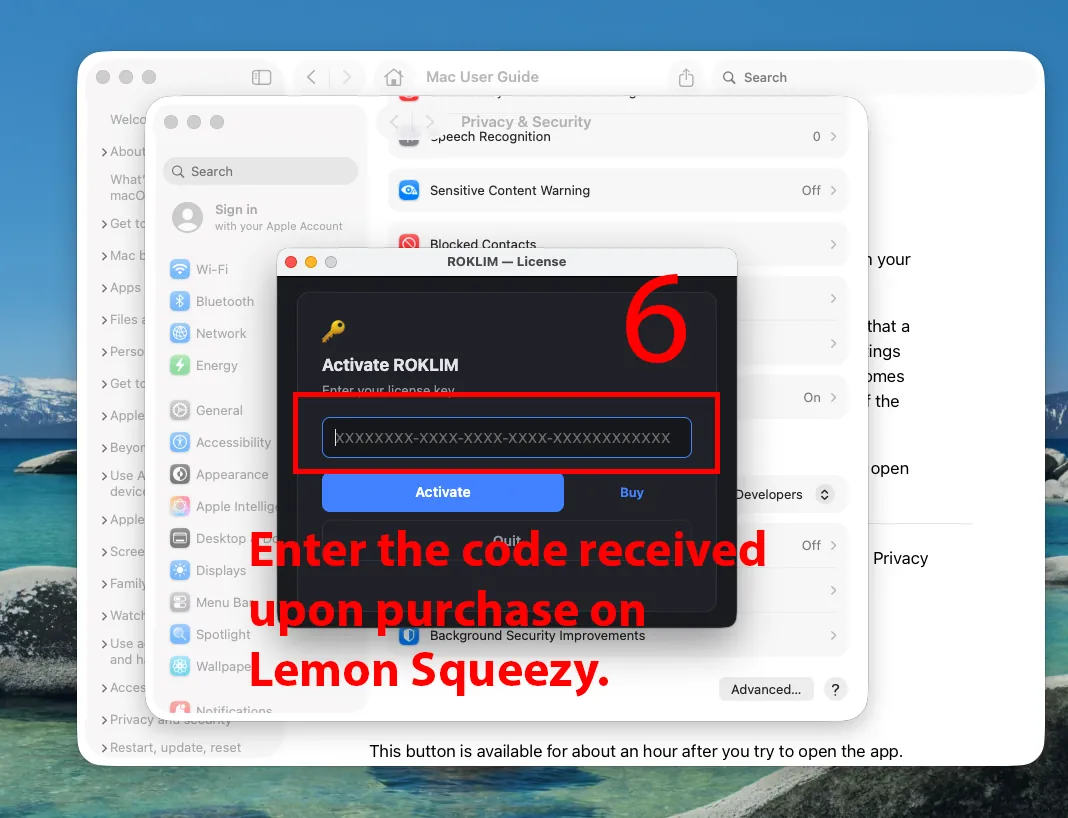
6. ROKLIM starts and asks for your license key — the key you got with your purchase (Lemon Squeezy email). Paste it and press Activate.
One key works on up to 2 computers. To move ROKLIM to another PC, press Deactivate this PC in the hub first — that frees the slot. A lifetime license works offline after activation.
3. Check the setup in the hub
Open Resolve with your project and timeline, then look at the setup line at the top of the ROKLIM hub. It checks everything ROKLIM needs and says what to fix:
| Check | If it fails |
|---|---|
| DaVinci Resolve installed | Install DaVinci Resolve, or point ROKLIM at its fuscript (Windows: fuscript.exe in the Resolve folder). |
| Resolve is running | Start Resolve and open your project. |
| ROKLIM can talk to Resolve | Free Resolve: Workspace → Scripts → ROKLIM. Studio: set External scripting to Local (step 1) and restart Resolve. |
| Project and timeline open | Open the timeline you want to work on. |
| Plain Latin project / timeline names | Layout calibration needs them; rename if Auto-measure complains. |
| Subtitle track found | Only a note: Layout can also read an SRT or make subtitles from the audio. Animation, SFX and VFX need no subtitles. |
4. Three things to put in the Media Pool
Once per project:
- A Text+ title — Layout makes every word from it. In Resolve: Effects → Titles → Text+, drag it into the Media Pool. Keep its name
Text+. - An Adjustment Clip — only for VFX. Effects → Adjustment Clip, drag it into the Media Pool.
- A Fusion Composition — only for Graphics (Easy → VFX → Graphics). Effects → Fusion Composition, drag it into the Media Pool.
5. Your first video
- Open Layout. Subtitles: press DaVinci Resolve Free → Create subtitles and ROKLIM makes them from the audio (the Balanced speech model downloads once, 181 MB) — or use a subtitle track (Resolve Studio can create one from the audio) or an SRT.
- In Layout set the zone and the video tracks for the words, press RUN. See Layout.
- Open Animations, give each clip colour an animation, press RUN. See Animations.
- Optional: SFX for sounds and VFX for effects at markers.
Every window has How to use at the top: a short tour that walks through the fields in order.
Updates
On Windows, ROKLIM checks for updates when it starts and shows what is new. On Mac, download a new version from roklim.com/download and replace the app in Applications — your settings and license stay. On both, the engines for DaVinci Resolve that your license covers are downloaded automatically.